Inbox Rotation Explained: How to Scale Cold Email Without Hitting Spam Filters
Adam Hossain
Published October 15, 2026
8 min

Complete Agentic Email Outreach
AI agents find and enrich prospects, personalize emails, follow up, and handle replies with your meeting link.
Start Your 7-Day Free Trial
You hit send on a cold campaign, and the replies never come.
Often, the problem isn’t your message. It’s how much one inbox is sending.
Gmail’s AI-powered defenses block more than 99.9% of spam and stop nearly 15 billion unwanted emails every day.
So when one mailbox suddenly sends hundreds of emails, it gets noticed fast.
That’s where inbox rotation helps. It spreads your campaign sends across several mailboxes, so no single account carries the full load.
In this guide, you’ll learn:
- How inbox rotation works
- Why it matters for deliverability
- How to set it up
- When to pause sending
What Is Inbox Rotation and How Does It Work
Inbox rotation sounds technical, but the idea is simple.
Picture one inbox sending 300 emails a day. Then picture ten inboxes sending 30 each (illustrative numbers).
The campaign stays the same. Each account carries a much lighter load.
You’ll also hear it called mailbox rotation.
How Campaign Volume Is Split Across Mailboxes
Your outreach tool handles the split automatically, based on two simple rules:
- New prospects go to inboxes with room left. Each mailbox has a daily cap, and the tool assigns new contacts to whichever one hasn’t hit it yet.
- Follow-ups stay with the original sender. That keeps the conversation in one thread, so prospects always hear from the same person.
According to Google’s Top 10 Gmail sender issues guide, senders should maintain a steady sending pace throughout the day and across multiple days to avoid sudden spikes in email volume.
How It Differs From Domain Rotation and Email Warmup
Inbox rotation often gets confused with two related practices. Here’s how they compare:
Most teams need all three. None of them replaces the others
Why Inbox Rotation Matters for Cold Email Deliverability
Now that you know how rotation works, here’s why it matters.
Mailbox providers watch for sudden jumps in sending activity. Rotation keeps the sending pattern smooth and steady for each inbox.
But it only manages volume, nothing else. Some delivery problems need a separate fix.
Distribute Workload Without Creating Sending Spikes
Spread your scheduled sends across accounts and sending windows. Instead of one mailbox firing 300 emails by noon, ten inboxes send small batches throughout the day.
Still, adding accounts won’t fix:
- Invalid addresses that cause hard bounces
- Messages that feel irrelevant to the reader
- Recipients who mark you as spam
More inboxes just spread the same problem further.
Understand Shared Domain Reputation and Provider Requirements
Inboxes on one domain share its reputation. If one mailbox draws complaints, the others can feel it.
Google counts messages from the same primary domain, including subdomains, toward its bulk sender threshold. That’s close to 5,000 messages to personal Gmail accounts within 24 hours, per its email sender guidelines FAQ.
So splitting volume across ten inboxes doesn’t reset the count. If your domain crosses the line, bulk sender rules still apply.
Once reached, that status doesn’t expire.
How to Set Up Inbox Rotation Step by Step
Rotation works best when you set it up in the right order.
You’ll move from domains to authentication, then to capacity, and finally to a small pilot.
Every number below is only a planning example. It’s not a guaranteed safe limit for your own setup.
Step 1: Prepare Sending Domains and Mailboxes
Start with secondary domains that clearly relate to your brand. If you own acme.com, something like getacme.com works better than a random name.
Give every inbox a real person’s name, not a generic “sales@” address.
Since inboxes on one domain share its reputation, spread them across a few domains.
Step 2: Authenticate and Warm Up Each Inbox
Next, set up SPF, DKIM, and DMARC on every sending domain.
Then send a test email to a Gmail account and open “Show original.” All three should say PASS.
Under Microsoft’s Outlook sender policies, domains sending more than 5,000 emails a day must comply with all three. Non-compliant messages go to junk, and unresolved issues can lead to rejection.
Then warm up each inbox gradually. Judge readiness by bounces and replies, not a fixed number of days.
Suggested Reading:
10 Email Warm Up Tools That Fix Deliverability Issues FastStep 3: Calculate Capacity and Set Sending Rules
Now work out how many inboxes you need:
Inboxes needed = total daily sends (new emails + follow-ups) ÷ planned sends per inbox, rounded up
The table below assumes 30 sends per inbox and 3 inboxes per domain:
Once you have the numbers, set sending windows and a daily cap per inbox inside your outreach tool.
Step 4: Verify Your List and Run a Small Pilot
Before enrolling anyone, clean your list:
- Remove duplicates
- Verify every email address
- Apply your suppression lists
Oppora’s email finder and verifier can handle this step before prospects enter a sequence.
Then launch a small pilot. Review bounces, replies, and inbox placement before you scale up.
When to Pause Sending: Warning Signs and Common Mistakes
Setting up rotation is only half the job. You still need to watch how each inbox performs.
Every warning sign points to a different fix, so knowing what to look for saves you time.
And once a problem shows up, rotation alone won’t fix it.
Spam rate is a good place to start. Google’s email sender guidelines say to keep the spam rate in Postmaster Tools below 0.10%.
You should never let it reach 0.30% or higher.
Suggested Reading:
10 Email Warm Up Tools That Fix Deliverability Issues FastWarning Signs That Mean Stop and Check
Each of these signals needs a quick pause and review:
Bounces need extra care. Outlook’s sender policies say that after multiple non-delivery responses, senders must stop emailing that recipient.
So remove hard-bounced addresses right away.
Suggested Reading:
Best AI Tools to Avoid Spam Filters in Cold Email OutreachOverloading Remaining Inboxes When One Pauses
When one inbox pauses, it’s tempting to shift its volume onto the others. But that creates the exact spike rotation is meant to prevent.
If one of ten inboxes pauses, the other nine should handle 270 sends, not 300.
Recalculate your capacity instead, and queue the extra sends for later days.
Replacing Inboxes Instead of Fixing the Cause
Swapping a struggling inbox for a fresh one feels like a quick fix. But the new inbox brings the same list, message, and domain, so the problem returns.
Before adding anything new, check:
- Data: Are bounces coming from stale contacts?
- Targeting: Are complaints coming from the wrong audience?
- Authentication: Are SPF, DKIM, and DMARC still passing?
Keep one suppression list shared across all inboxes, so removed contacts never come back.
Scale Inbox Rotation and Cold Outreach With Oppora

Everything covered so far works best when your list, mailboxes, and replies live in one place.
Oppora connects prospect preparation, mailbox rotation, campaign reporting, and reply management in a single workflow.
So you’re not stitching four separate tools together just to run one cold campaign.
Here’s what a typical flow looks like:
Build a targeted list → verify emails → enroll prospects → review results and replies
Build and Verify ICP-Matched Prospect Lists
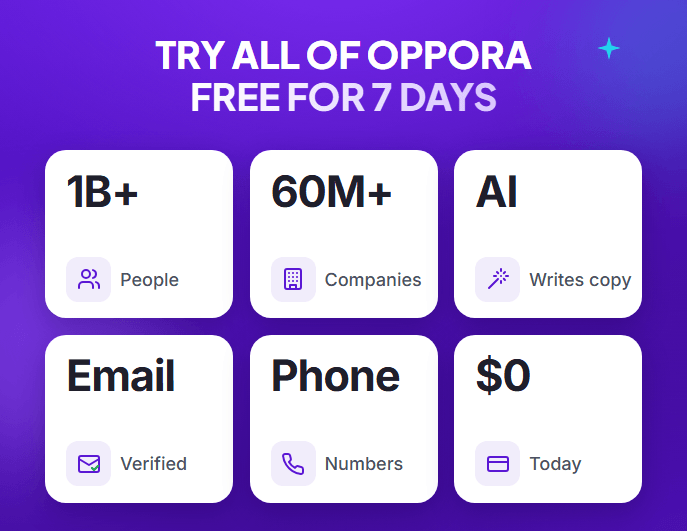
Start in Finder, where Oppora searches 1B+ people with your ICP already loaded. Filter decision-makers by job title, seniority, company size, or intent signals like recent funding.
Save the matches to a list, then run Find Email and Verify Email before anyone enters a campaign.
Targeting keeps your message relevant. Verification flags invalid addresses early, before they turn into hard bounces.
Rotate Sequences Across Up to 50 Mailboxes
Next, connect your Gmail, Outlook, or custom-domain mailboxes. The Max plan supports up to 50.
That’s product capacity, not a safe sending volume. Warmup and domain health still set your real limits.
Inside the sequence, rotation runs on a few built-in rules:
- Per-inbox daily caps: Each mailbox stops at its own limit, set to 50 by default.
- Random gaps: A mailbox rests a few minutes between sends, so it looks human.
- Bounce protection: A mailbox pauses itself if bounces spike in a day.
You can also add LinkedIn steps, like a connection request, while email keeps rotating.
Track Results and Manage Replies in One Inbox
Before adding volume, open your campaign report.
The Delivery Breakdown shows bounce levels, while Emails Sent by User confirms volume is spread evenly across senders.
Replies land in Unibox, Oppora’s unified inbox. Each one is auto-tagged by intent, like Interested or Wrong Person, so your team knows what to answer first.
Conclusion
Inbox rotation isn’t a shortcut around spam filters.
It’s a way to grow your cold email volume without making any single mailbox look suspicious.
But it only works when you follow the full sequence, in order, and keep watching the results. Here’s the short version:
- Prepare your domains and mailboxes
- Authenticate and warm up each inbox
- Calculate your capacity
- Pilot, monitor, and adjust as you go
Get those steps right, and more inboxes mean more conversations, not more risk.
When you’re ready to run it all in one place, set up your rotation workflow in Oppora and start with a small pilot.
Frequently Asked Questions (FAQs)
Do you need inbox rotation for a small cold email campaign?
Not necessarily. If one mailbox can handle your planned campaign activity without delivery problems, adding accounts creates extra management work. Consider rotation when your total workload, including follow-ups, requires additional capacity. Start with your actual campaign requirements rather than a fixed number of inboxes.
Should every mailbox use the same sender name and signature?
Each mailbox should accurately identify the person sending the message. Use consistent company branding, but match the signature and reply details to the actual sender. If several team members participate, make ownership clear so recipients understand who they are speaking with throughout the conversation.
How should you handle out-of-office replies in a rotating campaign?
Review the reply before continuing the sequence. If it includes a return date, pause that prospect’s follow-ups and schedule a suitable next touch. Keep the original sender assigned where possible. Check your platform’s settings because automated replies may be classified differently from genuine responses.
What should you check when moving a rotating campaign to another platform?
Transfer suppression lists, sender assignments, sequence progress, and reply status before restarting. Confirm which follow-ups have already been sent so prospects do not receive duplicates. Reconnect and test each mailbox, then resume a limited portion of the campaign to check that scheduling and conversation continuity work correctly.
Who should manage replies when multiple team members share the sending pool?
Assign a clear owner to each prospect or conversation before launching. A shared inbox helps visibility, but the team still needs rules for response ownership, handoffs, and coverage during absences. Review unanswered conversations regularly so multiple people do not respond independently or assume someone else has handled them.
Summarize with AI
Share