10 Best AI Tools to Boost Your LinkedIn Engagement in 2026
Adam Hossain
Published September 30, 2026
22 min

Complete Agentic Email Outreach
AI agents find and enrich prospects, personalize emails, follow up, handle replies, and book meetings automatically.
Claim Your FREE Credits
Your LinkedIn posts might reach fewer people than they did two years ago.
Richard van der Blom's 2026 research confirms it. After analyzing 1.3 million posts from 50,000 creators, he found reach for active creators dropped 60%.
He also noticed that 80% of comments on his posts in the first five minutes were AI-written.
So the challenge isn't posting more. It's getting real engagement from the right people.
That's where AI tools for LinkedIn engagement can actually help.
Below, you'll get a practical comparison of tools for:
- Content creation and formatting
- Comments and prospect activity
- Analytics and converting engagement into pipeline
What Changed About LinkedIn Engagement in 2026?
Before comparing tools, it helps to understand what changed. A few tactics that worked two years ago now quietly work against you.
LinkedIn's Feed Is Becoming More Topic- and Interest-Driven
In March 2026, LinkedIn rebuilt its feed using large language models.
Now it reads what your post is actually about, then matches it with members interested in that topic, even outside your network.
It learns those interests from how people like, comment, and linger on posts.
So posting about cold email one week and leadership the next makes you harder to place. Pick one clear professional topic and stay with it.
Comments and Reading Behavior Matter More Than Vanity Metrics
Likes are easy to give, so they say little about real LinkedIn engagement.
Someone who reads to the end or leaves a thoughtful comment shows far more intent.
Each week, track these alongside impressions:
- Comments with real substance
- Replies that turn into conversations
- Profile visits from people in your target market
AI Content Is Not the Problem Generic Content Is
LinkedIn isn't against AI. This year, it swapped its AI "enhance your post" feature for a proofreader that polishes your words without changing your voice.
What gets ignored is generic content with no opinion, example, or lived experience.
And buyers notice. The 2025 Edelman LinkedIn B2B Thought Leadership Impact Report found 95% of hidden buyers become more receptive to sales outreach after seeing strong thought leadership.
That's the principle behind this guide: AI assists, and your expertise supplies the substance.
AI Tools for LinkedIn Engagement: Quick Comparison
Now that you know what LinkedIn rewards, here's how the tools line up.
Each one handles a different part of engagement, so compare them by the job you need done.
Prices are monthly starting rates in USD. Most tools are cheaper on annual billing.
10 Best AI Tools for LinkedIn Engagement
The table gives you the quick view. Now let's go deeper into each tool.
You'll see the LinkedIn engagement job it handles, how to use it well, where it falls short, and what it costs. Then pick what fits best.
1. Oppora

Oppora is an AI sales platform that automates your outbound. It handles lead generation, enrichment, outreach, follow-ups, and meeting booking in self-running workflows.
Most tools here help you earn engagement. Oppora helps you act on it.
It finds the right people behind your comments, then runs email and LinkedIn outreach together, so every touch builds on the last.
Key Features
- Searches companies using ICP filters, buying signals, and firmographic attributes
- Identifies relevant decision-makers across target accounts
- Finds missing business emails through waterfall sourcing across multiple providers
- Verifies business email addresses in real time before outreach starts
- Enriches, cleans, deduplicates, scores, and organizes imported prospect records automatically
- Builds personalized sequences that combine email and LinkedIn outreach
- Automates LinkedIn connection requests, accepts, likes, comments, and shares within campaigns
- Syncs contacts, replies, meetings, and deals into your CRM
How to Use Oppora for LinkedIn Engagement
Say your post gets 25 comments. Not every commenter is a lead.
Here's how to find the ones worth your time:
- Capture commenters with the Oppora Chrome extension
- Enrich their role, company, and contact details
- Score them against your ICP
- Start a sequence: like their latest post, send a connection request, then follow up by email
Now you're following up with the five who fit, not all 25.
And because of those warm-up touches, your email arrives from a familiar name, not a stranger.
Pros and Cons
Here's what users highlight in Oppora's G2 reviews.
Pros
- Lead research, contact discovery, and outreach in one place
- Accurate data that helps protect bounce rates and domain reputation
- Easy setup with responsive, hands-on support
Cons
- Not built for writing or scheduling LinkedIn posts
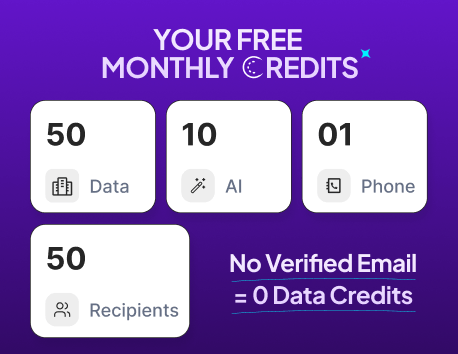
- Free and entry-plan credits run out quickly at scale
- Workflow setup can feel overwhelming at first
- Works best once your ICP is clearly defined
Pricing
Oppora offers Free, Pro, Max, and Enterprise plans. Pro costs $34/month, Max is $79/month, and Enterprise starts at $499/month.
Paid plans give you separate credits for email search, verification, and enrichment. That makes usage easier to track than one shared credit pool.
For practical planning:
- Pro includes 5,000 email-search and 5,000 verification credits
- Max increases both allowances to 10,000
- Email sending is unlimited, but monthly unique-recipient limits apply depending on your plan
2. Taplio

Taplio is an AI-powered LinkedIn tool for creating, scheduling, and analyzing posts. It's built for people who want to publish consistently without starting from a blank page.
Suggested Reading:
10 Proven Tactics to Find More New Clients on LinkedIn in 30 DaysKey Features
- AI post and hook writing based on top-performing LinkedIn formats
- A viral post library with 5M+ posts you can search by topic and format
- A carousel generator that turns posts, articles, or videos into slides
- Scheduling with a content queue and calendar
- Analytics for post performance and follower growth
- Engage lists that surface posts from people you want to interact with
How to Use Taplio for LinkedIn Engagement
The library is useful, but copying top posts won't help you stand out.
Instead, use it like this:
- Search the library for posts in your niche with strong comments, not just likes
- Note the format: the hook, the structure, and the closing question
- Rebuild that format around your own experience
- Schedule two or three posts a week to stay consistent
Say you find a high-performing "3 mistakes I made" post. Keep the structure, then fill it with a real lesson from a recent customer call.
Pros and Cons
Here's what users highlight in Taplio's G2 reviews.
Pros
- AI drafts follow proven LinkedIn formats
- The viral post library makes idea research fast
- Easy setup through the LinkedIn extension
- Helps you stay consistent with posting and replies
Cons
- Pricing feels high compared with similar tools
- AI drafts still need editing to sound like you
- Carousel designs are fairly limited
- Some users find the interface dated and the learning curve steep
Pricing
Taplio has three paid plans and a 7-day free trial, but no free plan.
- Starter: $39/month for scheduling, the post library, and basic analytics, without AI writing
- Standard: $65/month, which adds AI writing, 250 AI credits, and 500 comment credits
- Pro: $199/month, which adds lead-generation and outreach features
Annual billing cuts costs by up to 25%.
3. Supergrow

Supergrow is an AI LinkedIn content tool that turns your ideas and existing material into posts in your own voice. It also handles scheduling, analytics, and team approvals.
Key Features
- Repurposes articles, YouTube videos, PDFs, and audio into LinkedIn drafts
- PostCast, an AI interview that turns a short conversation into a week of posts
- Content DNA, which learns your tone, vocabulary, and opinions from past posts
- Scheduling with a content calendar and automatic first comment
- Approval workflows and team analytics for agencies and teams
How to Use Supergrow for LinkedIn Engagement
Most of your best ideas already exist somewhere. They're in a webinar, a sales call, or a blog post nobody reads anymore.
Here's how to put them to work:
- Upload one long-form source, like a webinar recording or customer story
- Pull out several angles, one question or lesson per post
- Add your own opinion or example to each draft
- Schedule them across the next two weeks
Take a 30-minute webinar. The five audience questions from the Q&A can easily become five educational posts.
Pros and Cons
Here's what users highlight in Supergrow's G2 reviews.
Pros
- Output sounds less generic, thanks to voice customization
- Simple setup and a clean onboarding experience
- Turns articles and videos into posts quickly
- Approval workflows work well for agencies managing client accounts
Cons
- Analytics feel limited, especially on lower plans
- The carousel maker is still basic
- Some users find the interface dated
- Focused on content, so it won't handle prospecting or lead follow-up
Pricing
Supergrow offers a 7-day free trial, then three paid plans.
- Starter: $19/month for AI writing and scheduling
- Pro: $39/month, which adds analytics and the carousel maker
- Teams: from $139/month for 4 users
Annual billing saves 20% on every plan.
4. ChatGPT

ChatGPT is OpenAI's general-purpose AI assistant. For LinkedIn, it works as a writing partner that helps you brainstorm, draft, rewrite, and sharpen posts.
Key Features
- Hook variations for the same post idea
- Rewriting drafts for clarity, tone, and length
- Brainstorming topics and angles from a single theme
- Custom instructions and Projects that keep your voice and context between chats
- Repurposing newsletters, transcripts, and notes into post drafts
- Line-by-line editing and refinement
How to Use ChatGPT for LinkedIn Engagement
ChatGPT is only as good as the context you give it.
Ask for "a LinkedIn post about sales" and you'll get something generic. Give it your real material, and the output improves fast.
Try this workflow:
- Paste your 5–10 best-performing posts
- Ask it to find recurring topics, structures, and audience questions
- Share your target audience and the subject of your next post
- Ask for three angles, not a finished post
- Write the draft yourself, then use ChatGPT to tighten it
This way, ChatGPT builds on what already works for your audience instead of guessing.
Pros and Cons
Here's what users highlight in ChatGPT's G2 reviews.
Pros
- Very easy to use, with almost no setup
- Saves time on drafting, research, and editing
- Turns messy ideas into clear, structured writing
- Useful far beyond LinkedIn
Cons
- Can state facts confidently that turn out to be wrong, so verify every stat
- Outputs can feel generic or repetitive without strong prompts
- The free plan has usage limits that kick in quickly
- No built-in LinkedIn publishing, scheduling, or analytics
Pricing
ChatGPT has a free plan and several paid tiers.
- Free: $0 with usage limits
- Go: $8/month for higher limits, though it may include ads
- Plus: $20/month, the best fit for regular professional use
- Pro: $100 or $200/month for heavy users
For most LinkedIn creators, Free or Plus is enough.
Suggested Reading:
How to Use ChatGPT for Sales Prospecting (+20 Best Prompts Inside)5. AuthoredUp

AuthoredUp is a LinkedIn formatting and analytics tool that works as a Chrome extension. It doesn't write posts for you. Instead, it helps you shape, preview, and measure the posts you write yourself.
Key Features
- An editor inside LinkedIn with bold, italics, bullets, and readability checks
- Post previews on desktop and mobile, including where the "see more" cutoff lands
- Hook and ending templates to strengthen your openings and closings
- A calendar view with best-time-to-post insights and reminders
- Draft sharing for quick feedback from clients or teammates
- Full post history and profile growth analytics
- Data export and API access for deeper reporting
How to Use AuthoredUp for LinkedIn Engagement
Your best content ideas are often hiding in posts you've already published.
Here's how to find them:
- Open your analytics and pull up your last 20 posts
- Sort by comments instead of impressions
- Note which topics started real conversations
- Plan your next few posts around those topics
- Preview each draft so the hook lands before the "see more" cutoff
You might find a post with modest reach but 30 thoughtful comments. That topic deserves more of your attention than the viral one nobody discussed.
Pros and Cons
Here's what users highlight in AuthoredUp's Chrome Web Store reviews.
Pros
- Multi-device preview makes formatting mistakes easy to catch
- Analytics go deeper than LinkedIn's native insights
- Hooks, snippets, and post reuse speed up writing
- No cookies or automation, so your account stays safe
Cons
- No AI writing, so every post still starts with you
- Occasional sync or connection issues with LinkedIn
- Works only on Chromium browsers like Chrome, Edge, and Brave
- Not built for prospecting or lead follow-up
Pricing
AuthoredUp offers a free trial with no credit card required.
- Individual: $19.95/month, or $16.63/month billed annually
- Business: $14.95 per profile/month, with a minimum of 3 profiles
- Custom Growth: custom pricing for teams of 10+ profiles
6. Canva

Canva is an online design platform with ready-made templates, drag-and-drop editing, and built-in AI tools. For LinkedIn, it's the easiest way to turn a text idea into a carousel people actually swipe through.
Key Features
- Thousands of templates for LinkedIn posts, carousels, and banners
- Canva AI, which turns a text or voice prompt into a first design
- Magic Resize to adapt one design into multiple formats
- Brand Kit to keep your fonts, colors, and logos consistent
- A Content Planner for scheduling social posts
- PDF export for LinkedIn document carousels
How to Use Canva for LinkedIn Engagement
Carousels are worth the effort. Dataslayer's 2026 analysis found that document posts (PDF carousels) averaged a 6.6% engagement rate, the highest of any LinkedIn format.
The easiest way to build one is to start with a text post that already worked:
- Pick a post that earned strong comments
- Break its main idea into 6–8 slides
- Keep one idea per slide, with short text
- End with a clear takeaway or a question
- Export as a PDF and upload it as a document post
Say your "5 mistakes sales teams make" post did well. Give each mistake its own slide, add a quick fix underneath, and close by asking which mistake readers see most often.
Pros and Cons
Here's what users highlight in Canva's G2 reviews.
Pros
- Very easy to use, even with no design background
- A huge template and stock media library
- AI tools and Magic Resize speed up production
- The free plan is genuinely useful
Cons
- Many of the best templates and features need a paid plan
- Large, detailed designs can feel slow
- Less depth than professional design software
- No LinkedIn-specific analytics or prospecting features
Pricing
Canva has a free plan and two main paid plans.
- Free: $0 with core templates and design tools
- Pro: $18/month or $180/year for one person
- Business: $25 per person/month for teams
Pro includes a 30-day free trial.
7. Opus Clip

Opus Clip is an AI video tool that turns long videos into short, captioned clips. It finds the strongest moments for you, so you don't have to scrub through an hour of footage.
Key Features
- AI clipping that pulls the strongest moments from long videos
- A virality score to help you pick which clips to post
- Automatic captions with highlighted keywords
- AI reframing to fit different aspect ratios
- Brand templates for consistent fonts, colors, and caption styles
- Background noise removal and a built-in scheduler
How to Use Opus Clip for LinkedIn Engagement
Video is worth the effort on LinkedIn. Dataslayer's 2026 analysis found native video averaged a 5.6% engagement rate, second only to document carousels.
You don't need to film anything new. Start with what you have:
- Upload a webinar, podcast, interview, or presentation
- Let the AI suggest clips, then keep the most useful ones
- Check the captions for misspelled names or terms
- Trim any clip that runs long or loses focus
- Download the best clips and upload them natively to LinkedIn
Take a 45-minute customer interview. Each question your guest answers can become its own 60-second clip, giving you a week of video from one conversation.
Pros and Cons
Here's what users highlight in Opus Clip's G2 reviews.
Pros
- Turns hours of editing into minutes
- The AI is good at spotting strong moments
- Auto captions and brand templates save setup time
- Very easy to learn
Cons
- AI clip picks and titles sometimes miss, so you may need to regenerate
- Lacks some basic editing controls, like changing video speed
- Rendering can be slow during peak times
- Only useful if you already produce long-form video
Pricing
Opus Clip has a free plan and two paid plans for individuals.
- Free: 60 processing minutes/month, with watermarked exports
- Starter: $15/month for 150 minutes/month
- Pro: $29/month, or $174/year, for 300 minutes/month
A custom Business plan is available for larger teams.
8. Engage AI

Engage AI is a Chrome extension that drafts LinkedIn comments with AI. It reads a post, suggests a relevant reply, and lets you edit it before you publish.
Key Features
- AI comment suggestions drafted right inside LinkedIn's comment box
- Custom tones, length, emoji, and keyword settings
- Prospect monitoring that alerts you when target accounts post
- Support for comments in 50+ languages
- Integrations with HubSpot, Pipedrive, and Zapier
How to Use Engage AI for LinkedIn Engagement
A thoughtful comment on a prospect's post is often a softer first touch than a cold message.
Here's how to make it count:
- Add your target prospects to Engage AI's monitoring list
- Open their new posts as soon as you're alerted
- Generate a starting comment with the AI
- Add one specific point from the post plus your own experience or question
- Review the wording and publish it yourself
Instead of "Great post!", try: "Your point about slow onboarding hit home. We cut ours from 14 days to 5 by adding a kickoff call. What's worked best for your team?"
Pros and Cons
Here's what users highlight in Engage AI's G2 reviews.
Pros
- Reads and understands posts to suggest personalized comments
- Drafts comments that feel authentic, not robotic
- Saves time while keeping you active with your network
- The free plan includes unlimited comment drafts
Cons
- Some suggestions feel superficial or repetitive without editing
- Responses can sound static and may need tweaks for different cultures
- The free plan only monitors 10 prospects
- Not built for automated commenting, so every comment still needs your review
Since the pod warning isn't from G2, I moved it out of the cons and into Pricing:
Pricing
Engage AI offers a free plan and a 14-day unlimited trial with no credit card required.
- Free: $0 with unlimited comment drafts and 10 monitored prospects
- Starter: $12.90/month
- Pro: $30/month
- Elite: $80/month, with monitoring for up to 1,000 prospects
Stick with the comment extension. The company's separate "Engagement Community" works like an engagement pod, which LinkedIn penalizes.
9. LinkedIn Sales Navigator

LinkedIn Sales Navigator is LinkedIn's own prospecting tool for sales teams. It helps you find the right people and accounts, then keeps you updated when they post, change jobs, or show buying signals.
Engage AI helps you comment. Sales Navigator helps you decide whose posts are worth commenting on in the first place.
Key Features
- Advanced lead and account search with 50+ filters
- Saved lead and account lists to organize target prospects
- Real-time alerts for job changes, promotions, and new posts
- AI-powered Account IQ and Lead IQ summaries
- Relationship Explorer to surface warm intro paths
- 50 InMail credits per month
How to Use Sales Navigator for LinkedIn Engagement
The best engagement starts before you ever send a message.
Here's how to set it up:
- Build a list of 20–30 target accounts
- Save the decision-makers at each one
- Turn on alerts for their posts and job changes
- Check your alerts each morning and engage with relevant posts
- Reach out only after a few genuine interactions
Say a VP of Sales on your list posts about slow ramp times for new reps. Leave a thoughtful comment on the problem first. When you message later, you're continuing a conversation, not starting a cold one.
Pros and Cons
Here's what users highlight in Sales Navigator's G2 reviews.
Pros
- Precise filters for finding decision-makers
- Real-time alerts help you reach out at the right moment
- AI summaries speed up account research
- Built into LinkedIn, so it feels familiar from day one
Cons
- Expensive for small teams and individual users
- Advanced filters come with a learning curve
- Limited InMail credits on lower plans
- No direct emails or phone numbers for prospects
Pricing
Sales Navigator offers a 30-day free trial for eligible new users, then three plans.
- Core: $119.99/month, or $89.99/month billed annually
- Advanced: $159.99/month, adding team collaboration features
- Advanced Plus: custom pricing, with CRM sync
10. Buffer

Buffer is a social media scheduling tool with a built-in AI assistant, an engagement inbox, and performance analytics. It's one of the simplest ways to post consistently on LinkedIn and keep up with the comments that follow.
The earlier tools help you create. Buffer helps you show up consistently and respond while the conversation is still active.
Key Features
- A visual content calendar and posting queue
- A free AI assistant for post ideas, repurposing, and tone changes
- An engagement inbox that brings LinkedIn comments into one view
- Analytics for post performance, audience growth, and engagement
- Support for LinkedIn profiles and company pages
How to Use Buffer for LinkedIn Engagement
Timing your replies matters. Richard van der Blom's 2026 research found that replying to comments within 30 minutes earns about 64% more comments and 2.3x more views.
Here's a simple way to build that habit:
- Batch-write your posts for the week in one session
- Use the AI assistant to tighten hooks or adjust tone
- Queue each post for a time when you're free right after
- Reply to early comments from the engagement inbox
- Check analytics weekly to see which posts sparked conversations
Say you schedule three posts for Tuesday, Wednesday, and Thursday at 9 AM. Block 9:00 to 9:30 on those days, and you'll never miss the first wave of comments.
Pros and Cons
Here's what users highlight in Buffer's G2 reviews.
Pros
- Very easy to use, with setup in minutes
- The free plan is genuinely useful
- The AI assistant is included on every plan
- Saves hours of manual posting every week
Cons
- Analytics are basic compared with dedicated tools
- Per-channel pricing adds up as you connect more accounts
- The free plan caps your queue at 10 posts per channel
- The engagement inbox is only on paid plans
Pricing
Buffer offers a free plan and two paid plans priced per connected channel.
- Free: up to 3 channels and 10 scheduled posts per channel, including the AI assistant
- Essentials: $5/channel/month billed annually, or $6 billed monthly
- Team: $10/channel/month billed annually, or $12 billed monthly
How to Use AI Tools for LinkedIn Engagement Without Losing the Human Element
Knowing the AI tools for LinkedIn engagement is one thing. Using them without sounding like everyone else is the real skill.
Step 1: Research Topics and Plan Your Content
Use AI to spot recurring customer questions, then check your past posts for topics that sparked real conversations.
Pick three topics a week based on problems your audience actually has, not trends AI says are popular.
Step 2: Turn Your Expertise Into a First Draft
Give AI your raw material, like call notes, customer examples, or a webinar transcript. Let it structure the idea, then add your own opinion before you publish.
Real insight → AI draft → personal experience → final post
Step 3: Review, Edit, and Publish Manually
Before you publish, check for:
- Accurate facts, stats, and names
- Generic AI phrases to cut
- Your natural voice
- One clear takeaway
Then ask yourself: would I actually say this to a customer?
Step 4: Use AI to Support Comments, Not Replace Conversations
AI can help you understand a prospect's post and find a comment angle. The final comment should still come from you.
LinkedIn now blocks hundreds of thousands of automated comment attempts every day. Auto-comments and engagement pods are a fast way to lose reach.
When someone replies, answer them personally.
Step 5: Measure Engagement and Follow Up With the Right People
Look past impressions. Review who commented, visited your profile, or kept engaging.
Not every commenter is a lead, and qualifying them by hand takes time. Salesforce's State of Sales report found reps already spend 70% of their time on non-selling tasks. .
Oppora helps by enriching engagers, scoring them against your ICP, and moving the right ones into follow-up.
Suggested Reading:
AI Follow-Up Automation: How to Turn More Conversations Into Booked MeetingsUse This Simple AI-to-Human Workflow Every Week
Here's the full loop in one line:
Research → AI draft → Add expertise → Human review → Manual publish → Human conversation → Measure → Follow up
AI handles speed, research, and drafting. You handle expertise, judgment, and relationships.
Use AI to make your LinkedIn workflow faster, not less human.
How to Choose the Right AI Tools for LinkedIn Engagement
Now you have a workflow. The next step is picking the tools to run it.
You don't need all ten. You need the right one or two for the job you're actually trying to do.
Here's how to choose wisely.
Choose Based on Your Main Goal
Start with the result you want, then match the tool to it:
- Personal brand: Taplio, Supergrow, or ChatGPT
- Visual content: Canva
- Video: Opus Clip
- Commenting: Engage AI
- Prospecting: Sales Navigator
- Scheduling and replies: Buffer
- Analytics: AuthoredUp
- Engagement to pipeline: Oppora
There's no single best stack. The right one depends on your job.
Don't Buy Five Tools That Solve the Same Problem
More tools don't mean more engagement. Salesforce's State of Sales research found 66% of sales reps feel overwhelmed by too many tools.
Running Taplio, Supergrow, and ChatGPT together usually means paying three times for the same drafts.
If you create content, one writing tool is enough. If you sell, you likely need prospecting, engagement, and follow-up, not another content app.
Starter Stacks by Budget
Here's where to start based on your budget and role:
- Free/low-cost: ChatGPT + Canva + Engage AI's free plan
- Solo creator: Add AuthoredUp or Taplio for formatting and analytics
- Founder-led sales: Sales Navigator + Engage AI + Oppora
- Content team: Supergrow + Canva or Opus Clip + AuthoredUp
Start with one problem, measure the result for a few weeks, then add the next tool.
A Practical Weekly Workflow Using AI Tools for LinkedIn Engagement
Tools and principles only help if they become a habit.
Here's a simple weekly rhythm you can repeat without spending your whole week on LinkedIn.
Monday — Choose Three Topics
Start with real questions from sales calls, demos, support tickets, or DMs.
Pick three you can answer from actual experience. Then use ChatGPT or Taplio to test a few hooks and angles for each.
You'll be done planning in 30 minutes.
Tuesday to Thursday — Publish and Start Conversations
Publish one post a day, then stay online for the first 30 minutes to reply to early comments.
After that, spend 15 minutes engaging with posts from target accounts. Use Engage AI to understand a post or find an angle, but write and publish every comment yourself.
Those comments often become your warmest conversations later.
Friday — Review Engagement and Identify Opportunities
Look at who commented, visited your profile, or engaged more than once. Run the ones who match your ICP through Oppora to enrich and score them.
Say 40 people engaged this week. If six fit your ICP and two asked real questions, those two get a follow-up.
The rest aren't a lost cause. Ehrenberg-Bass research for LinkedIn's B2B Institute found that up to 95% of B2B buyers aren't in-market at any given time.
So keep them warm with useful content, not a pitch.
What to Measure Each Week
Track these every Friday:
- Comments and meaningful conversations
- Profile visits
- Relevant new connections
- Qualified engagers
- Meetings booked
- Engagement-to-opportunity conversion
Impressions show how far a post traveled. Qualified engagement shows whether it reached the right people.
Final Thoughts
AI can make almost every part of LinkedIn faster, from research and writing to formatting, commenting, and measuring what worked.
But speed isn't what earns engagement. Your expertise and judgment are.
Each tool on this list handles a different stage, so build your stack around the job you need done.
And if you sell, the real win comes after the comments: turning the right conversations into pipeline.
Getting comments but no leads? Try Oppora to identify, qualify, and follow up with the people behind your most valuable LinkedIn engagement.
Start on the free plan and see who's worth a conversation.
Frequently Asked Questions (FAQs)
What is a good LinkedIn engagement rate in 2026?
It depends on who's measuring. Social Insider's 2026 benchmark puts the average at 5.20%, while AuthoredUp's analysis of personal profiles found a 2.38% median. Anything between 2% and 5% is normal. Your own recent history is the better benchmark, since engagement rates drop as follower counts grow.
How long does it take to see results from AI-assisted LinkedIn engagement?
Give it at least six to eight weeks of consistent posting before judging. The feed needs time to learn what you post about, and your audience needs time to recognize you. Track comments and qualified engagers weekly, then compare month over month instead of post by post.
Is it safe to connect AI tools to my LinkedIn account?
Mostly, as long as the tool keeps you in control. Prefer tools that use LinkedIn's official APIs or don't require your login cookie. Avoid anything that posts comments in bulk without review, and keep automated actions like connection requests at moderate daily volumes.
Do I need to disclose that I used AI to write a LinkedIn post?
There's no rule requiring it for text posts, and most people don't. What matters is that the ideas and experience are genuinely yours. AI-generated images are different, since LinkedIn can show a Content Credentials label on them. Never pass off AI visuals as real photos.
Do these AI tools work for LinkedIn company pages too?
Some do. ChatGPT, Canva, and Opus Clip work for any content, and Buffer supports company pages directly. AuthoredUp is built for personal profiles only. For page performance, start with LinkedIn's free Page analytics before paying for a separate tool.
Summarize with AI
Share